A Few Words to Begin With
I’m not really the kind of person who loves writing a blog.
When I was in university, my way of studying was to read. Textbooks first; once I’d finished the textbooks, I went to the library to read. And of course, I always had to work hands-on while reading.
When reading got dull, I’d go online and look for video tutorials — vivid and concrete.
Later, as I installed more and more open-source software, I learned about each project’s official website from the software itself, and then went further and studied through the official documentation.
Books, videos and official documentation all share one trait: they are systematic and authoritative.
Blogs are not like that; they’re fragmentary.
Most technical blogs have these problems:
- They record only one of the causes of a problem, plus the corresponding fix;
- Or even a wrong fix — one that happened to make the problem go away;
- Or, because of a version issue, the method stops working once the version is upgraded.
Mostly dots, very few surfaces: neither systematic, nor guaranteed to be correct.
If I wanted to write a blog systematically, it would be no different from doing a translation — a huge undertaking, and I’d be better off just writing a book. And a problem-oriented approach, as I said above, analyzes things incompletely and easily wastes the reader’s time, which I’m not willing to do either.
But reading without ever writing isn’t a good habit either. If I keep it all inside, who knows what I know? And if I never share it, how can I help anyone?
The more books I read and the more I learned, the more I came to believe — and feel deeply — that the mindset for solving problems matters more than the answer itself.
So I’ve positioned my blog as a place to talk more about thinking, and more about principles.
Discussing principles directly, or using one point to open up the whole surface.
Articles like this I file under the Essays category.
Now let me start with the problem I ran into this time.
What Is TOC?
TOC is short for Table of Contents — in Chinese, 目录 (table of contents).
Everyone knows what a table of contents is, but “TOC” sounds far more high-end — or, as one might say, “hard to understand”.
Here’s a piece of advice: for English concepts that have a definite meaning, always convert them into Chinese first, and understand and memorize them that way. That way the whole meaning is self-contained in our minds, and we don’t have to call up an extra region of English knowledge in our heads to run a second translation pass.
In my post “A New Look for the New Year, the Site Got a New Theme!” I mentioned one of the features of the new theme:
- The sidebar shows the article’s table of contents. Another very pleasant surprise of a feature.
The problem I’m talking about here has to do with that feature.
The Problem as I First Hit It
Right after I switched to this theme, I ran into a problem: the table of contents area in the article page’s sidebar was empty.
At first, once I noticed the problem, I immediately opened the theme’s demo site and used the browser’s developer tools to inspect the headings in the article page content. They used the h1 tag. The theme I’d been using before rendered h1 at a very large font size, so I generally avoided h1 and started from h2. By ordinary logic, I guessed that the table of contents only supported h1 top-level headings — sidebar space is limited, after all. So I edited my own article content accordingly, but after previewing locally I found the problem was still there.
If I were the one implementing the display of a Markdown table of contents, the natural approach would be to read the various headings. Since not even h1 headings (that is, #) would display, I could be sure this theme wasn’t implemented that way.
My guess missed.
To quickly determine whether the problem lay in the article content, I applied the control-variable method and dropped the demo repository’s blog markdown files straight into my own repository. Previewing locally, I found the table of contents displayed fine!
So it was settled: the problem was with the article content.
Looking at the demo repository’s source, you can easily notice that at the beginning of the article there is the following:
Adding that snippet to the beginning of my own article and previewing locally, the table of contents in the sidebar had content!
Looking Into How It Works
I knew this part of the code could be used to generate a Markdown table of contents.
But on the blog’s article pages, there was no table of contents in front of the content! The table of contents is in the top right corner of the page!
At that point a few questions and guesses popped into my head:
- Why wasn’t the table of contents in front of the article displayed?
- What is the relationship between the table of contents in the top right corner and the one in the article? Why does adding the code give the sidebar table of contents content? Could the content in front of the article have “run off” to the right?
Let me start with the first question. It splits into two possibilities:
- When Jekyll generated the static files, it didn’t generate the table of contents at all. That’s how it looks at a glance.
- Jekyll did generate the table of contents, but hid it.
This one is easy to settle: open developer tools and take a look.
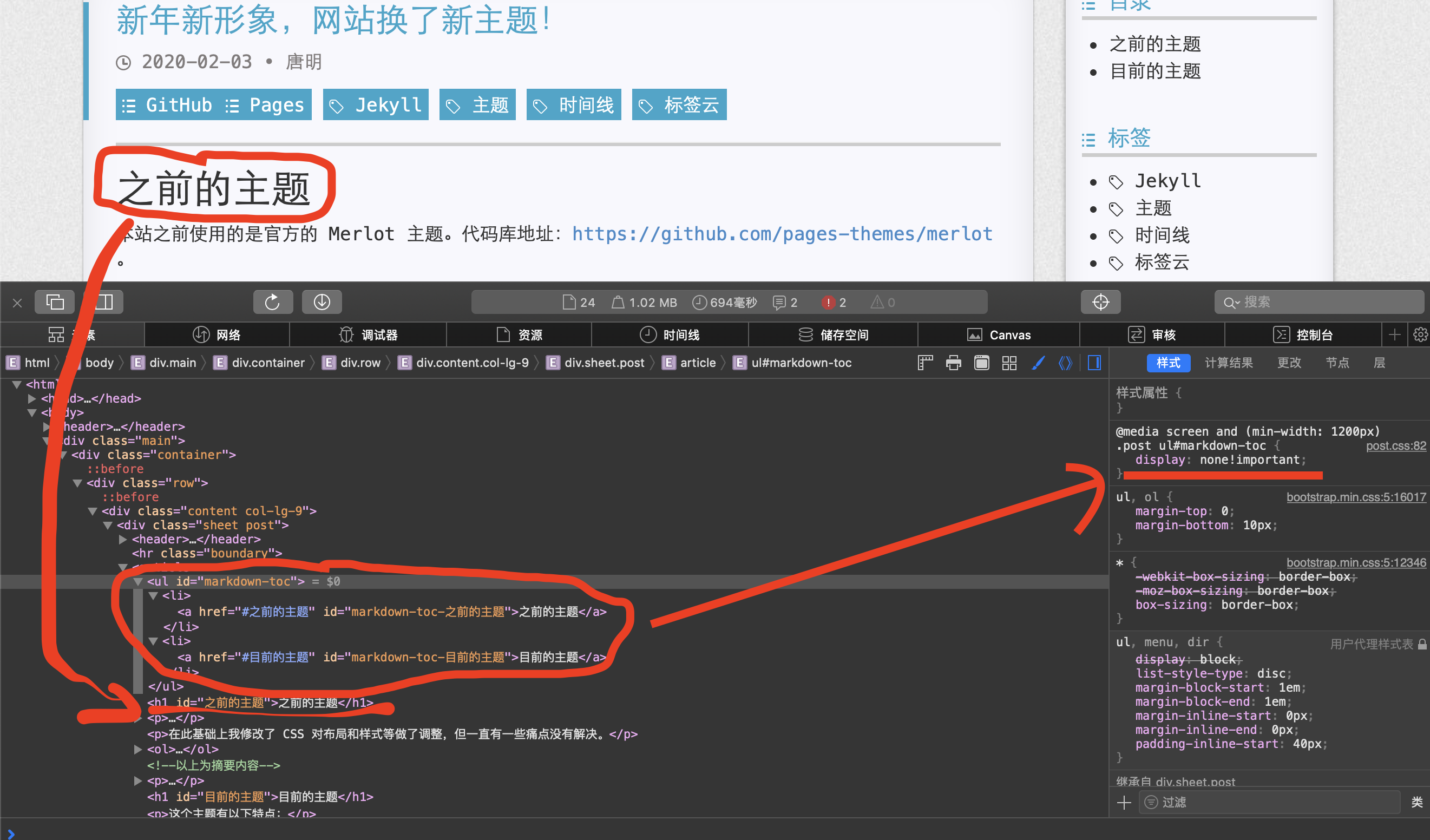
As you can see, the generated HTML source contains markdown-toc content, but in post.css this part is set not to display. So it’s the second of the two cases above.
With the first question answered, my guess about the second was close enough too. This design is clearly a way to “cut corners”: first use an existing feature to generate the table of contents, then copy the generated content and display a duplicate in the sidebar, then hide the content in its original position! A rather sly line of thinking — no, make that ingenious!
Let me verify the guess against the source code:
First, the template /_layouts/post.html:
<div class="content-navigation col-lg-3">
<div class="shadow-bottom-center" >
<div class="content-navigation-toc">
<div class="content-navigation-header">
<span class="octicon octicon-list-unordered"></span> 目录
</div>
<div class="content-navigation-list toc"></div>
</div>
<div class="content-navigation-tag">
<div class="content-navigation-header">
<span class="octicon octicon-list-unordered"></span> 标签
</div>
With the browser’s developer tools you can see that content is filled into <div class="content-navigation-list toc"></div>, and that it is exactly the same as the hidden table of contents in the article body.
There is no related code above or below this snippet, and no related JavaScript anywhere in the file, which shows that the copying action isn’t defined here.
Now the corresponding /static/js/post.js. The following is easy to spot:
/**
 * Sidebar table of contents
 */
function generateContent() {
    var $mt = $('.toc');
    var toc = $(".post ul#markdown-toc").clone().get(0);
    $mt.each(function(i,o){
        $(o).html(toc);
    });
}
The clone() in there is so conspicuous. And look at the line var $mt = $('.toc'); — .toc is exactly the class name defined by the snippet mentioned above. Finally, the table of contents from the article body is placed into the sidebar.
Confirmed!
The Fix
With the whole chain of cause and effect sorted out, I was a hundred percent certain of the cause. And I could confirm that the fix mentioned above really did target the right thing: adding code at the beginning of every article.
A New Problem Shows Up
I wasn’t happy for long before I found a new problem: the homepage lists articles, and the article excerpts showed the table of contents. Something like this:
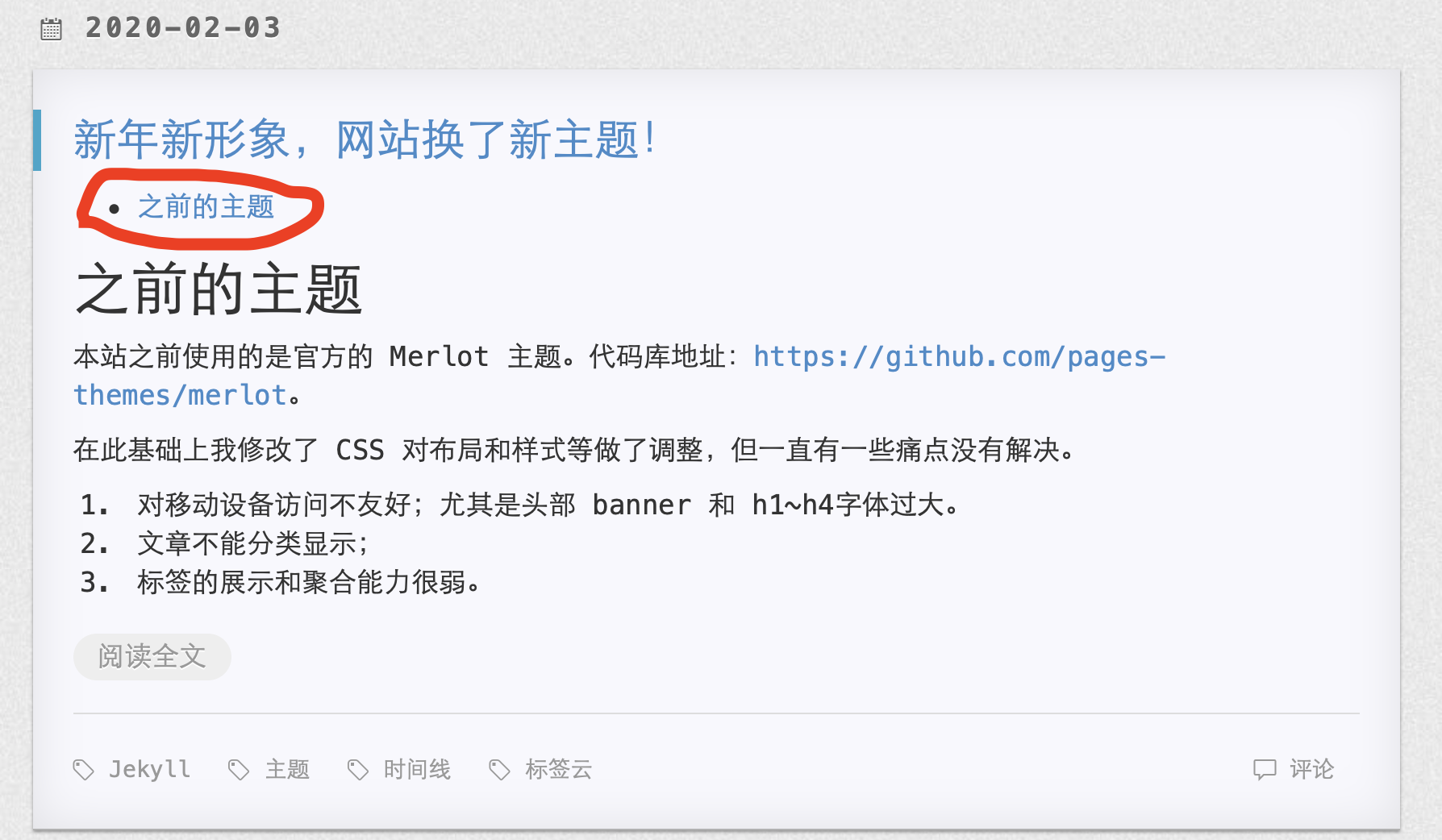
There’s an extra part circled in red. That’s not the result I wanted — far too obvious.
I hadn’t noticed this problem on the theme demo, so I went to check, and found it there too…
Only that the author had used Jekyll’s Liquid Filters expressions to strip the HTML tags, so that the excerpt was displayed as plain text, and the extra table of contents didn’t stand out much.
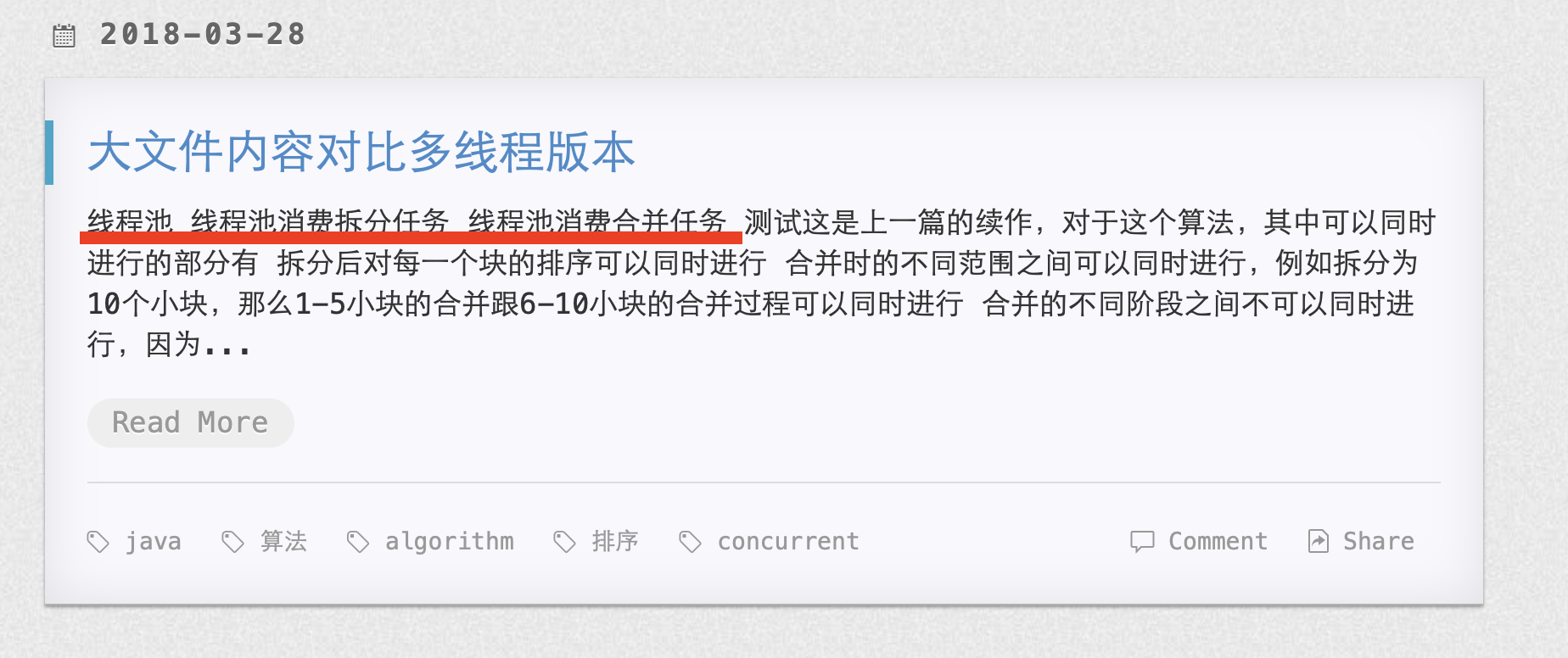
The red-lined part is the extra table of contents.
Improving the Fix
Liquid filters can strip HTML tags and remove blank lines. So is there a filter that can remove the content of the first few lines?
I checked the official Liquid Filters documentation at https://shopify.github.io/liquid/filters/abs/ and tried a few filters that seemed remotely plausible, but unfortunately none of them worked.
Setting the problem aside and stepping back, let me lay out the whole flow:
- Use code to generate the table of contents inside the article body;
- Hide the table of contents in the body;
- Display the body’s table of contents in the sidebar table of contents area;
- The homepage article excerpt takes the first part of the article, which causes the table of contents in front of the body to be displayed.
Steps 1–3 are all necessary — only that way can the sidebar show the table of contents, and I really like that feature, so it absolutely could not be scrapped.
So the problem now is: how do I solve 4?
In post you can add an excerpt field at the top to set the excerpt content, but this approach has obvious drawbacks:
- You can generally only write a short bit of text, similar to the article summary on a WeChat official account;
- I didn’t want to write a separate summary for every article — just taking the first part of the article worked fine.
Then it occurred to me. Since the excerpt takes the first part of the article, why not put the table of contents after the excerpt? The table of contents in the body is hidden anyway, so it makes no difference whether it goes before or after.
I tried modifying one article, and sure enough it worked:
- The homepage excerpt no longer showed the table of contents;
- The article page body didn’t show the table of contents either;
- The table of contents in the article page sidebar displayed normally.
So the solution is:
<!--以上为摘要内容-->
where the first line is the excerpt separator I configured in _config.yml:
excerpt_separator: <!--以上为摘要内容-->
Yet Another Problem
That problem had been put to rest.
Unexpectedly, a few days later, when I happened to visit the blog on my phone, I found yet another problem: when visiting on a phone, the table of contents shows at the position where the TOC code was placed.
In other words, it’s inserted in the middle of the body text, as shown below:
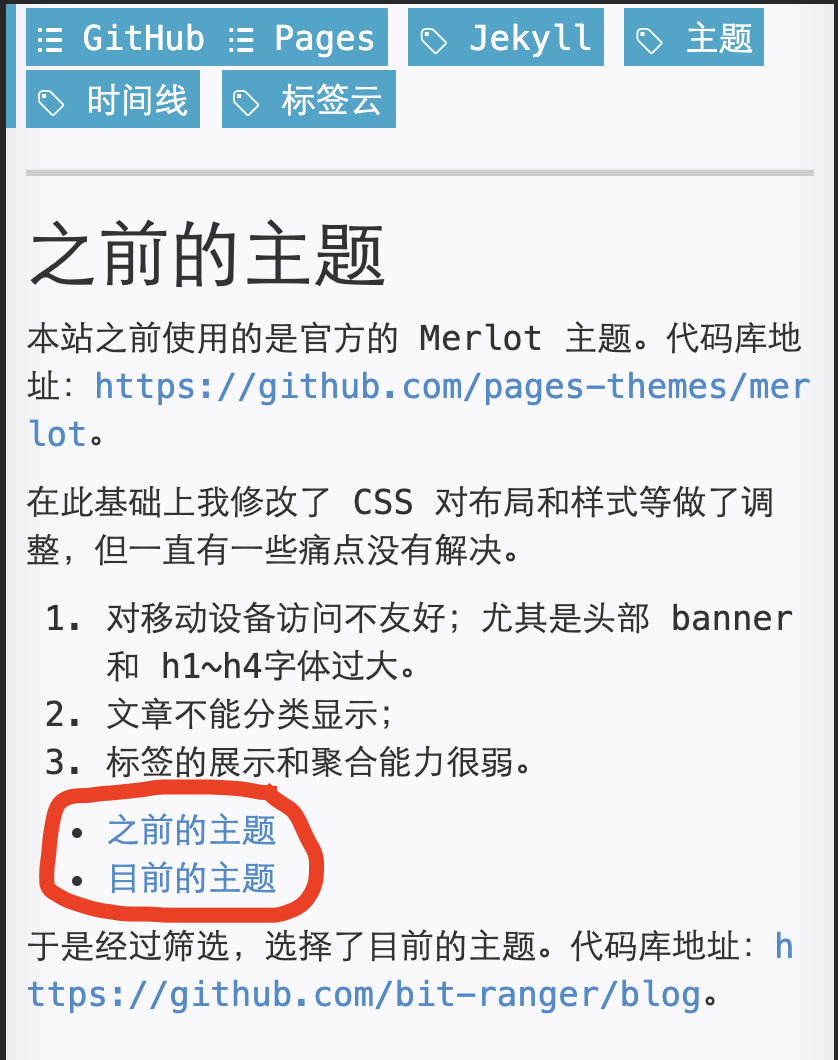
The experience was really unfriendly. As someone who cares about user experience, I absolutely couldn’t accept that.
Looking Into How It Works, Again
Had the theme author switched approaches again? Cutting corners once more, and on mobile devices just using the generated table of contents in the body, instead of using responsive design to move the sidebar’s table of contents to the front of the body?
I pulled up the browser developer tools and sure enough:
@media screen and (max-width: 1199px)
.content-navigation {
    display: none!important;
}
When the screen resolution width is less than 1199px, the sidebar is hidden outright.
Now back to the CSS for the table of contents in the body:
@media screen and (min-width: 1200px)
.post ul#markdown-toc {
    display: none!important;
}
When the screen resolution width is greater than 1200px, it isn’t displayed. In other words, when the screen resolution width is less than 1200px, it is displayed.
This too is responsive design, and the author’s implementation is still quite clever.
Let me lay out the whole flow once more:
- Use code to generate the table of contents inside the article body;
- On a high-resolution device, copy the body’s table of contents into the sidebar table of contents area, and hide the body’s table of contents;
- On a low-resolution mobile device, hide the sidebar and leave the body’s table of contents alone — that is, display it directly.
- Putting the TOC code after the excerpt separator means the homepage excerpt contains no table of contents, and article pages work fine on high-resolution devices, but on low-resolution mobile devices the table of contents appears in the wrong place.
The Final Fix
Earlier, so that the homepage excerpt wouldn’t show the table of contents, I’d put the TOC code after the separator. Now, to get a good experience on mobile devices, it looked like it had to go before it.
To give something the effect of not existing, when you can neither delete it nor move it away, only one path remains: make it invisible.
Using Liquid Filters expressions hadn’t worked before, and I’d also considered not displaying it, but I found that the HTML fragment of the table of contents generated on the homepage is the same as on the article page — because both are generated from the same TOC code.
The homepage uses style.css for its styles, and that’s global: other pages import this stylesheet too. So if the homepage’s table of contents were hidden, the sidebar’s table of contents on article pages would be hidden as well. At the same time, the other path — “moving it away” — was viable and fully met the requirement, so I didn’t look into it any further.
Now, with the mobile display problem added on top, the only option was to see whether it was possible to write styles that hide the table of contents.
Hiding the table of contents directly would also hide the sidebar’s table of contents on article pages, so again only one path remained: widen the scope in order to target it.
After comparing, I finally found the difference.
Look at the CSS for the table of contents in the body:
And now look at the CSS that hides the body’s table of contents at high resolution:
@media screen and (min-width: 1200px)
.post ul#markdown-toc {
    display: none!important;
}
The CSS I finally added to style.css:
section article ul#markdown-toc {
    display: none;
}
A Few Words to Close With
In reality, what this article solves isn’t a very big problem, and the code needed to finally fix it is very little. Following the way traditional blogs teach things, I could have just described the symptom and appended the few lines of code I added at the end (this article runs four or five thousand characters).
But as I said at the beginning of the article, the mindset for solving problems matters more than the answer itself.
A single decimal point can trigger a big problem. Fixing that problem also takes nothing more than correcting the decimal point. The real difficulty, though, lies here: how do we know that the problem was caused by a wrong decimal point?
How to analyze a problem, how to troubleshoot a problem — the invisible thinking activity in our heads is what really holds the key to solving it.
The problem we see is only the outward symptom; the internal fault is the root cause.
Reasoning from the outward symptom back to the internal state — this is in fact the “Zang-Xiang thinking” of traditional medicine.
“Zang-Xiang” means the inner viscera and their corresponding outward manifestations. Although this is a medical term, behind traditional medicine lies Chinese culture and Chinese philosophy: it is a traditional Chinese way of looking at problems and solving them.
Things have their physical laws; affairs have their principles.
The human body has its rules of operation, and a program has its rules of operation too.
In finding a solution to a problem, you don’t necessarily have to understand a program’s specific syntax. For example, exactly how to write the CSS that hides a particular HTML element is a specific piece of knowledge. But working out that hiding is the thing to do — the thinking process in that, for example:
To give something the effect of not existing, when you can neither delete it nor move it away, only one path remains: make it invisible.
This has nothing to do with code at all.
A program is simpler than the human body, because we can still see the program’s source code and still debug it, which makes the last step — correcting the internal fault — easy. The great strides of modern medicine lie precisely in this part: through anatomy, it gained a deeper understanding of the body’s internal structure.
Cultivating thinking ability and learning a distinctive perspective on problems is, I believe, more important than knowledge (knowledge is of course necessary, but knowledge alone is nowhere near enough), and it’s also what I most enjoy sharing.
When I get the chance, I’ll write specifically about “Zang-Xiang thinking”.